The Silhouette can do many amazingly awesome things, the problem is you have to know how to use the software to get it to do all those amazingly awesome things. I will try to bring you some Silhouette Tutorials as questions come my way.
Today’s tutorial is how to effectively use the Print and Cut feature on your machine to “punch” out party circles/logos/tags in many different shapes without needing any physical punches! I am going to use my Spring party tags from my latest Crafty Ladies Night Out post. However after going through the steps to make the tutorial I realized it would be easier if I resized my dimensions to make it easier for you. So you can now download those newly resized pages here and here. However my screen shots will have the original files.
{if you want to see more details in the photos just click on them to get a full screen view}


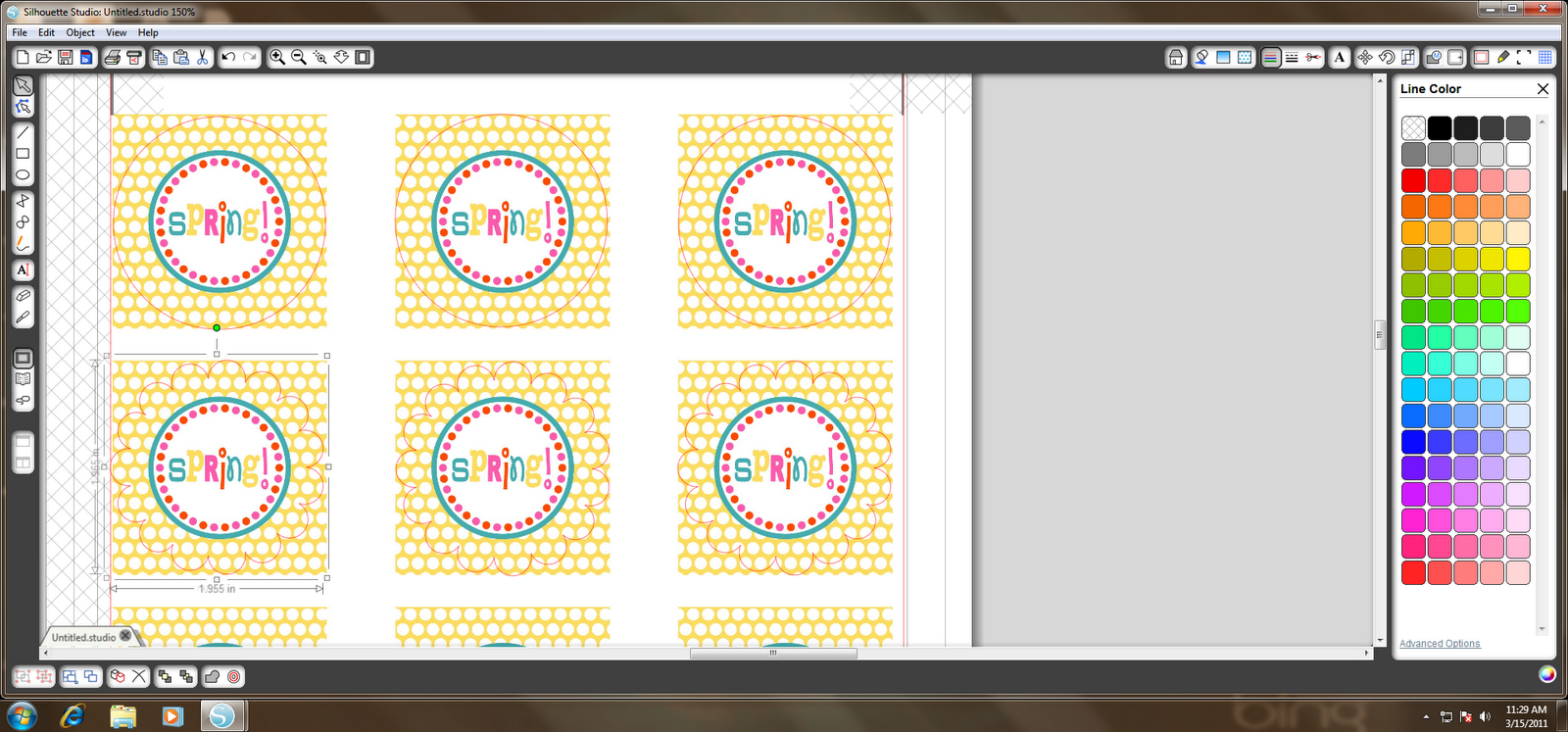
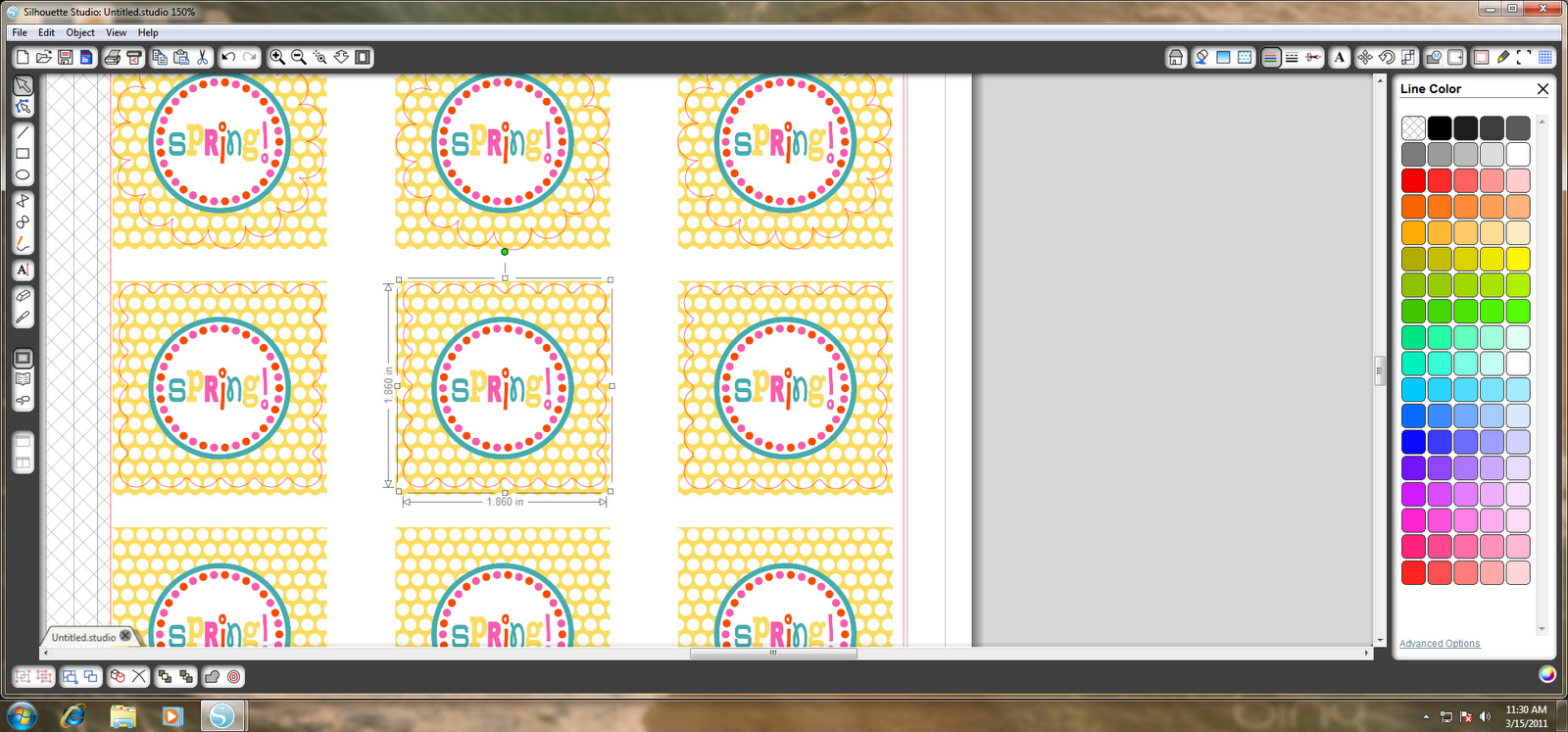
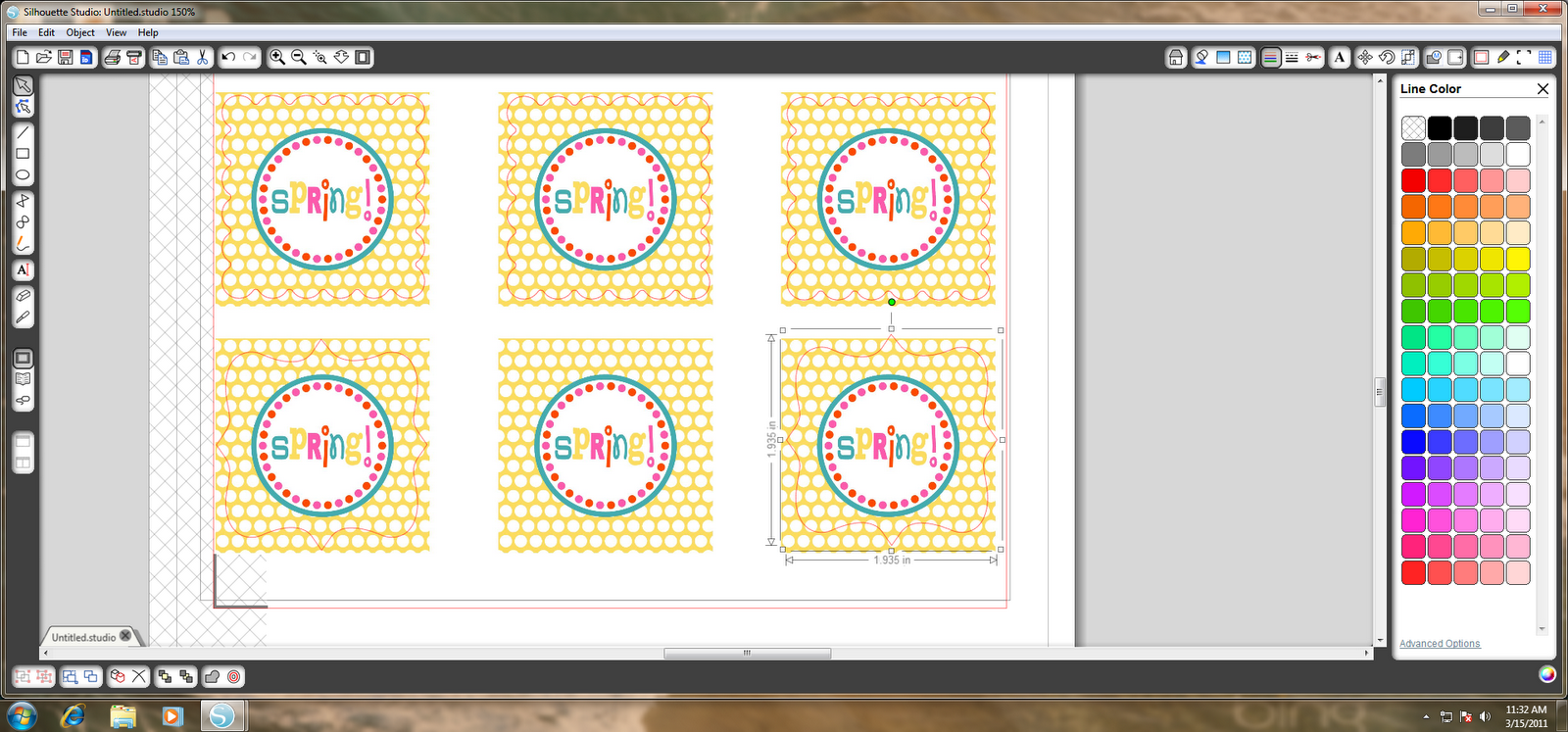
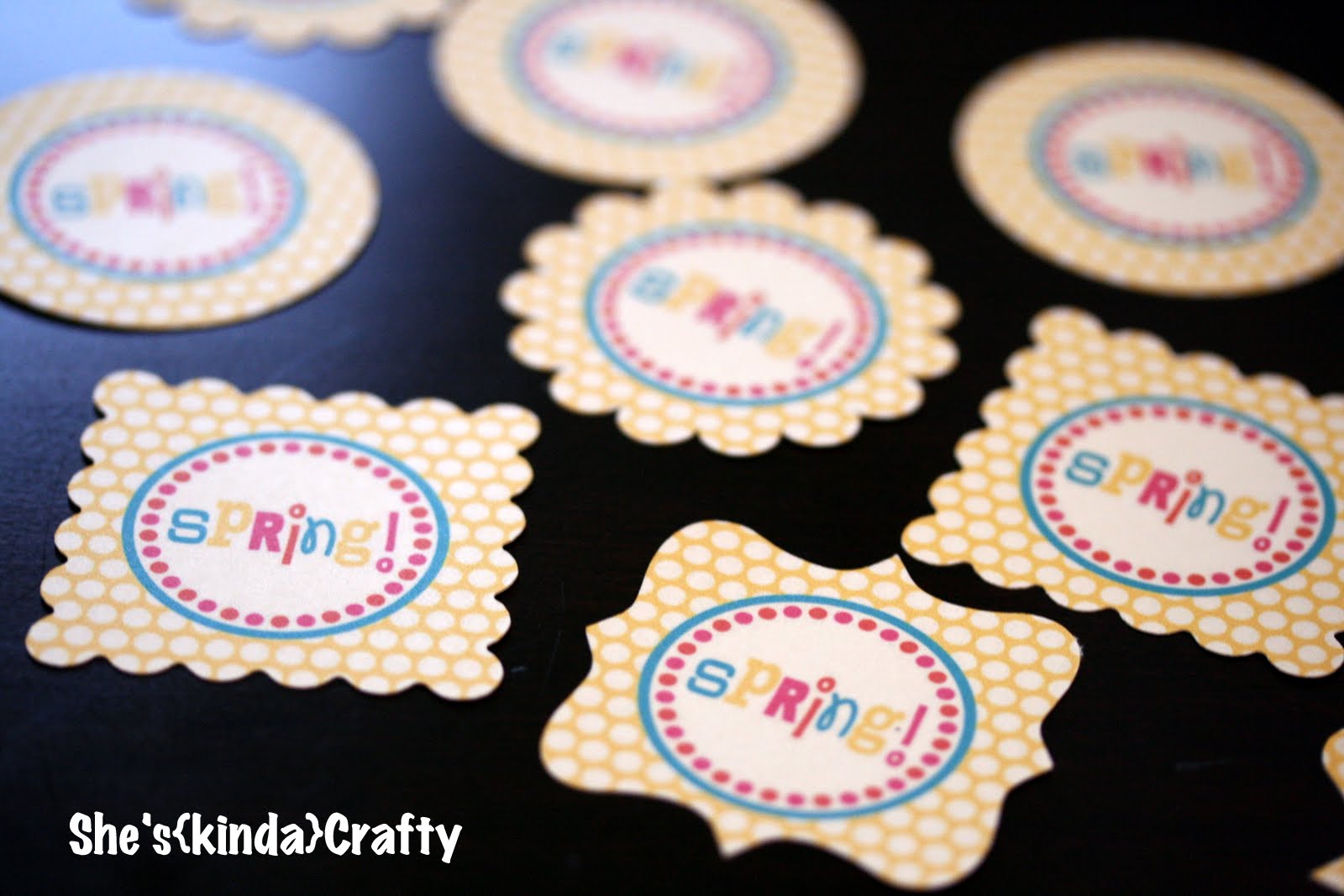







Thank you Stacy!! This will help me so much, I am new to the Silhouette and feel overwhelmed with all it can do!!
Melanie
Me too! Thank you so much! This was awesome! What kind of paper do you like to the best?
I’m going to follow this to make some cutouts for my daughter’s first bday this Saturday! So cute! I just got my Silhouette and haven’t used it for much yet! I’d love for you to link up on my new Link Party – Tuesday Time Out!
http://reasonstoskipthehousework.blogspot.com/2011/03/tuesday-time-out-link-up-party.html
Smiles,
Melanie
http://reasonstoskipthehousework.blogspot.com
Very Cute! Wishing I had a silhouette 🙂
Thanks for this, I’m almost positive I will be buying a Silhouette next payday, will be book marking this to help me with it!
do you know how many times i’ve come back to this post to leave you a comment???
this is so written for me but waaaay over my head. you KNOW i need to learn this, i just got a silhouette & am struggling to learn all this stuff.
thanks for this – seriously! bookmarking for sure.
thanks for linking this up for the SPRING FLING. you’re the best!
xo
kellie
THANK YOU!!!!! I’ve had my Silouhette for a while now and have not mastered the print and cut feature!!!!! This has been really helpful!!!
Fabulous tutorial! I haven’t yet used the print & cut feature because I’ve had so many alignment issues. I had no idea how to use registration marks, and this has helped so much…I can’t wait to try it out this weekend!
thank you for this! i have yet to use the print & cut feature as well. i’m giving it a try this weekend. 🙂
melanie
layercakedesigns.blogspot.com
Thanks for the tute! Too bad I didn’t have this 3 months ago when I wasted my pretty paper! In all my trial and error, I found a way similar to yours, but might a bit faster. Instead of importing to my library, I just saved my image as png, and opened it through the silhouette software, then did trace, or used the shape I wanted. I hit CTRL+A copy and pasted as many times as I could to fill the page. That way each image, and cut would be EXACTLY the same. Make sense? So instead of creating a bunch of cupcake toppers in PS, I just created one, then copied them in silhouette. I hope I made sense here, If not, then I’m just a crazy lady, and you may ignore me! Ha!
THANKS! My glitter pens came yesterday and I love having a visual to guide me through.
LOVE this! SO SO cute! Did you create those tags yourself? Any tips.. I’d love to make something similar for a baby shower I’m in charge of.
This was a great tutorial, Stacy! 🙂 Thank you for taking the time to type everything up…and for sharing your files. 🙂
Thanks for joining my Crafty Cutter party. 🙂 Hope you find some great crafty inspiration! 🙂
Thank you for the post, trying it as we speak. It was kind of confusing but you basically print the two times you mention (on/off reg marks) on the same piece of paper right?
hopefully I’ll get it!
thanks again.
Thank you! I love my silhouette! I love this! I’d love if you linked this up to my very fist link party! http://runwithglitter.blogspot.com/2011/03/glitters-first-linky-party_22.html
Thank you! Especially for the tip about moving the image, printing the registration marks, and then moving it back. I was so frustrated trying to figure that out. Once I finally figured out that the “white” part of my image was “covering” the marks, even though I could see them, I ended up using the eraser on the corners, but it was still trial and error. Your way seems much better!
Super cute! Would love for you to link this up 🙂
Lolly Jane
lollyjaneboutique.blogspot.com
Hi, great tutorial!!! I do have a question, can you do a tutorial on how you made the artwork? I am having a most difficult time trying to figure it out, your is so pretty! Than you for all you do!
do you print on your printer first? confused still , trying to learn this silhouette!!!
This comment has been removed by the author.
LOVE these!!! I have a silhouette and I made “printables” in the silhouette program…I had less options than using a different design program and then when I went to cut them, the circles were all off so they were all uneven. This tutorial is soooo helpful!! Thanks for the tips! Also, I second Jeanine, tutorial on how you made the artwork would be awesome because yours look amazing!!
Thank you so much:)! I am making sugar scrubs that need labels made. I have been so scared to use my silhouette but now I know I can do it:)! Your explination was great. Thank you for your time and tut:)!!
Dear, you saved me! I was looking for this tut, & now i´ve found. Ty & xoxo from Brazil.
Oh my goodness….this is incredible!! I have just discovered your phantastic blog, thank you for sharing your printing ideas!
flexographic label printing
Does it matter what kind of file you download for the silhouette? I have downloaded a few things but it won’t let me use them?
Hi Sue, downloading a print and cut file is the easiest way to go about it. You can search the store for only P&C files. They are noted by a small P in the lower right had corner. You can import any jpg into silhouette though to be able to do print & cut.